

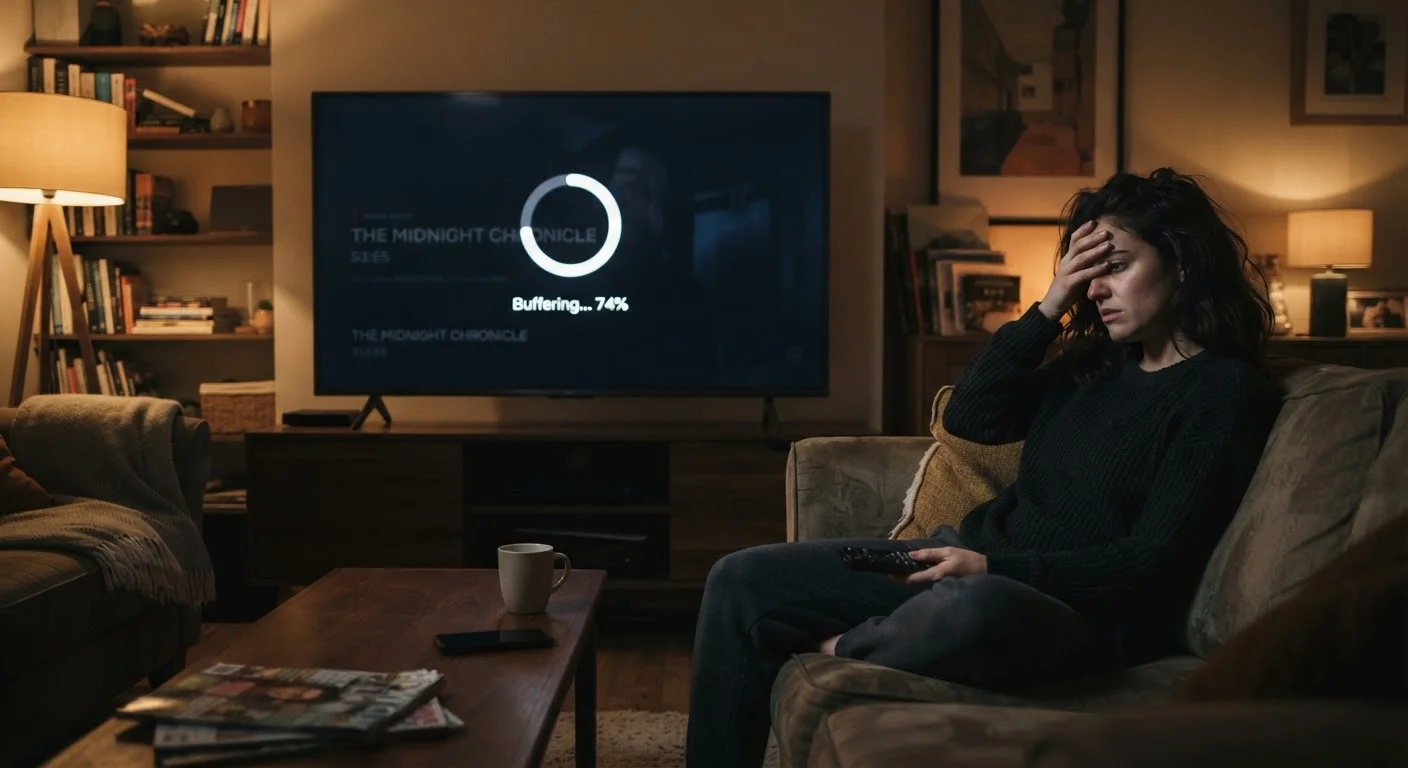
What Buffering Actually Means
When a video buffers, your device has run out of pre-loaded footage to display. Streaming works by downloading video data slightly ahead of playback and storing it in a temporary memory area called a buffer. When that buffer empties faster than it fills — because data isn't arriving quickly enough — the video freezes and waits for more data to arrive.
The root cause is almost always somewhere between your router and your streaming device. That's actually good news: it means the fix is usually within your control. Understanding which link in that chain is the weak one is the key to solving it. The common mistakes below are where most households go wrong.
Assuming the streaming service is the problem and refreshing or switching apps without investigating your local network.
Why it happens: When a video stops, the most visible thing is the app on screen — so that's where blame naturally lands. But streaming platform outages are rare; local network issues are common.
Placing the router in a cabinet, corner, or enclosed space that limits its wireless range.
Why it happens: Routers are often tucked away for aesthetic reasons. Most people aren't aware that physical obstructions — walls, furniture, appliances — significantly weaken the Wi-Fi signal before it reaches the TV.
Running bandwidth-heavy tasks on other devices during streaming — large downloads, video calls, or cloud backups — without realizing they compete for the same connection.
Why it happens: Each device on your home network shares the same total bandwidth coming in from your internet provider. A background update downloading on a laptop or a cloud backup running on a phone can quietly consume enough bandwidth to starve your streaming device.
Using an aging router that can't keep up with the number of connected devices in a modern home.
Why it happens: Routers are often treated as permanent fixtures and rarely replaced. A router that was adequate for three or four devices can struggle with a home that now has a dozen or more connected devices at once. Understanding how your devices process data can help — see our guide to RAM, storage, and processing power for context on device limitations.
Ignoring the difference between your internet plan's advertised speed and the actual speed your streaming device receives.
Why it happens: Advertised speeds reflect the best-case scenario at the modem. By the time that signal travels wirelessly to a TV across the house, the real-world speed can be dramatically lower — sometimes less than half the plan's stated rate.
The Most Overlooked Fixes
Once you've identified the likely culprit from the mistakes above, a few targeted actions tend to resolve buffering in most homes.
25 Mbps
Minimum recommended speed for HD streaming per device
The FCC's broadband guidelines suggest at least 25 Mbps download speed to support smooth HD video streaming on a single device.
~50%
Signal loss typical through interior walls
Wi-Fi signals commonly lose a significant portion of their strength passing through standard drywall, with dense materials like brick or concrete causing even steeper drops.
Switch to a wired connection where possible. An Ethernet cable from your router to your streaming device bypasses every Wi-Fi variable at once. Smart TVs, streaming sticks with an Ethernet adapter, and game consoles all support wired connections. If running a cable isn't practical, moving your router closer to the streaming device — or using a Wi-Fi range extender — is the next best option.
Restart your router and modem. Routers accumulate connection overhead over time. A simple restart clears that memory and re-establishes a fresh connection with your internet service provider. It takes about two minutes and solves buffering issues surprisingly often.
Lower the video quality manually. Most streaming apps let you choose a maximum resolution in their settings. If your connection is borderline for 4K, manually setting the app to 1080p removes the demand spike that triggers buffering — and the picture quality difference on a typical living room screen is minimal.
For a broader look at which household devices may be quietly competing for bandwidth, see our article on devices that tend to slow down a home network.
Don't Upgrade Your Internet Plan Too Quickly
Many households pay for faster internet tiers thinking it will cure buffering, but if the bottleneck is inside the home — a weak Wi-Fi signal, an old router, or network congestion between devices — a faster plan won't help. Diagnose the actual cause before spending more on a higher-speed subscription. Fixing the in-home network first is almost always more effective and less expensive.
The content on this site is for informational purposes only and is not a substitute for professional advice. Always consult a qualified professional for guidance specific to your situation.