

Before You Open the Box: Prepare Your Old Phone
The most common reason people lose data during a phone switch isn't a technical failure — it's skipping preparation. Taking 10 to 15 minutes on your old device before the new one is even powered on can save you from losing years of photos, contacts, or saved passwords.
Start by confirming your cloud backup is current. On an iPhone, go to Settings → → iCloud → iCloud Backup and tap Back Up Now. On Android, go to Settings → System → Backup and verify a recent backup exists. If your phone hasn't backed up in days, run one now over Wi-Fi — it may take several minutes.
Next, note any apps that store data locally rather than in the cloud. Banking apps, authenticator apps (used for two-factor login), and some games often fall into this category. Write down which accounts use an authenticator app — you'll need to migrate those manually.
What you will need
If you're uncertain about any of these steps, the Personal Computing From Scratch guide covers foundational concepts that can help you get comfortable before proceeding.
How to Transfer Your Data
Modern smartphones have made the actual transfer process much simpler than it used to be. The tools differ slightly depending on your platform.
iPhone to iPhone
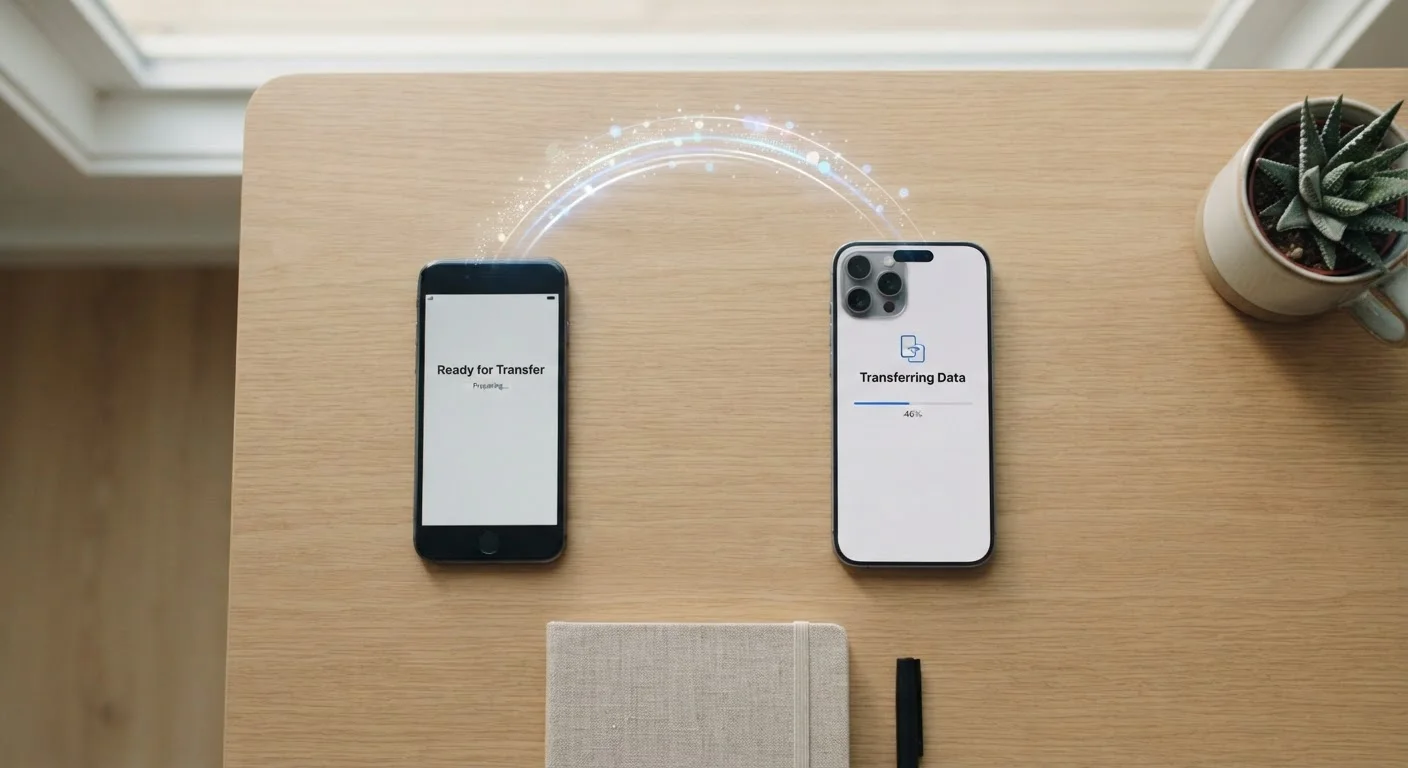
Apple's Quick Start feature works entirely over a wireless connection between the two phones. When you turn on your new iPhone and hold it near your old one, a pairing animation appears. Follow the prompts and your new phone will restore directly from your old device — or from an iCloud backup if you prefer. Most app data, settings, and passwords transfer automatically.
Android to Android
Most Android phones include a Switch to Android or device-specific setup assistant (such as Samsung Smart Switch or Google's built-in restore). During first-time setup, the phone will prompt you to copy data from your previous device, either via a cable or wirelessly. Contacts, photos stored in Google Photos, and apps linked to your Google account restore automatically.
Switching Between Platforms
Moving from Android to iPhone? Apple offers a free app called Move to iOS, available for Android, which transfers contacts, photos, mail accounts, and more over a private Wi-Fi connection. Going from iPhone to Android? Google's Switch to Android app handles a similar process in reverse. Neither tool transfers paid apps, since app purchases are tied to each platform's store separately.
Keep Both Phones on the Same Wi-Fi Network
During a wireless transfer, both devices need to stay connected to the same Wi-Fi network for the entire process. If one phone switches to mobile data or loses signal, the transfer may stall or fail partway through. Disable mobile data temporarily on both phones to avoid interruptions.
For a look at what else to do after your new phone is set up, see the guide to keeping a new gadget running well from day one.
What the Automated Tools Won't Handle
Transfer tools are impressive, but they have blind spots. Here's what you'll need to address on your own:
- Authenticator apps: Apps like Google Authenticator or Microsoft Authenticator don't automatically carry over. Before switching, enable cloud backup within each authenticator app (if supported), or transfer each account's two-factor setting manually through the service's security settings. Do this before your old phone loses access.
- Banking and financial apps: These often require you to re-verify your identity on the new device. Have your account credentials and any secondary verification method (email or SMS) available.
- Text message history: SMS messages don't always transfer between platforms. On iPhone-to-iPhone transfers via iCloud, they do. Cross-platform moves typically won't preserve them without a third-party tool.
- Wi-Fi passwords: These usually transfer within the same ecosystem (Apple to Apple, Google to Google) but may need to be re-entered when switching platforms.
It's also worth reviewing our pre-repair checklist — many of the same principles apply here, especially around logging out of accounts and noting your credentials.
Don't Skip the Authenticator App Step
Losing access to an authenticator app mid-transfer can lock you out of important accounts — including email, banking, and work tools — with no easy recovery path. This step must happen before your old phone is wiped or loses network access. If you're unsure how a specific app handles migration, check that app's support documentation first.
Verify, Then Wipe
Once your new phone appears set up, spend time confirming everything arrived before you erase or trade in the old one. Check your camera roll, contacts list, and a few key apps. Open your email and confirm it syncs. Try logging into one or two apps that required manual setup.
Only after you're confident should you consider wiping the old phone. On iPhone, go to Settings → General → Transfer or Reset iPhone → Erase All Content and Settings. On Android, look for Settings → System → Reset → Factory Reset. This removes your personal data and signs you out of your accounts — important before selling or recycling the device. Be aware that scams targeting people who skip this step are real; see our overview of how tech-based scams operate for context on why protecting your old device matters.
Once you're settled in, a few habits will keep your new phone running well for years. The guide to preventing phone slowdowns explains which everyday practices actually make a long-term difference.
The content on this site is for informational purposes only and is not a substitute for professional advice. Always consult a qualified professional for guidance specific to your situation.