

Our Verdict
A tablet can genuinely replace a traditional computer for a narrower set of users — those who browse, stream, take notes, video chat, and handle email without needing complex software or deep file management. For anyone doing heavy document editing, creative production work, or running specialized desktop applications, the limitations will surface quickly and persistently.
Best for light-to-moderate users — students, casual home users, frequent travelers — who prioritize portability and touch interaction over desktop-class power.
What Makes a Tablet Appealing as Your Only Device
The case for going tablet-only starts with the obvious: tablets are thin, light, and have long battery life. Pulling a device out of a bag that weighs under a pound and lasts ten-plus hours without a charger is a real, practical advantage — especially for commuters, students, or anyone who moves between locations frequently.
Beyond portability, the touch-first interface feels natural for reading, browsing, and consuming media. Video calls are convenient because the camera is already front and center. Apps for email, calendars, note-taking, and social media are all well-optimized for tablet screens. For a large segment of everyday tasks, a tablet handles them smoothly.
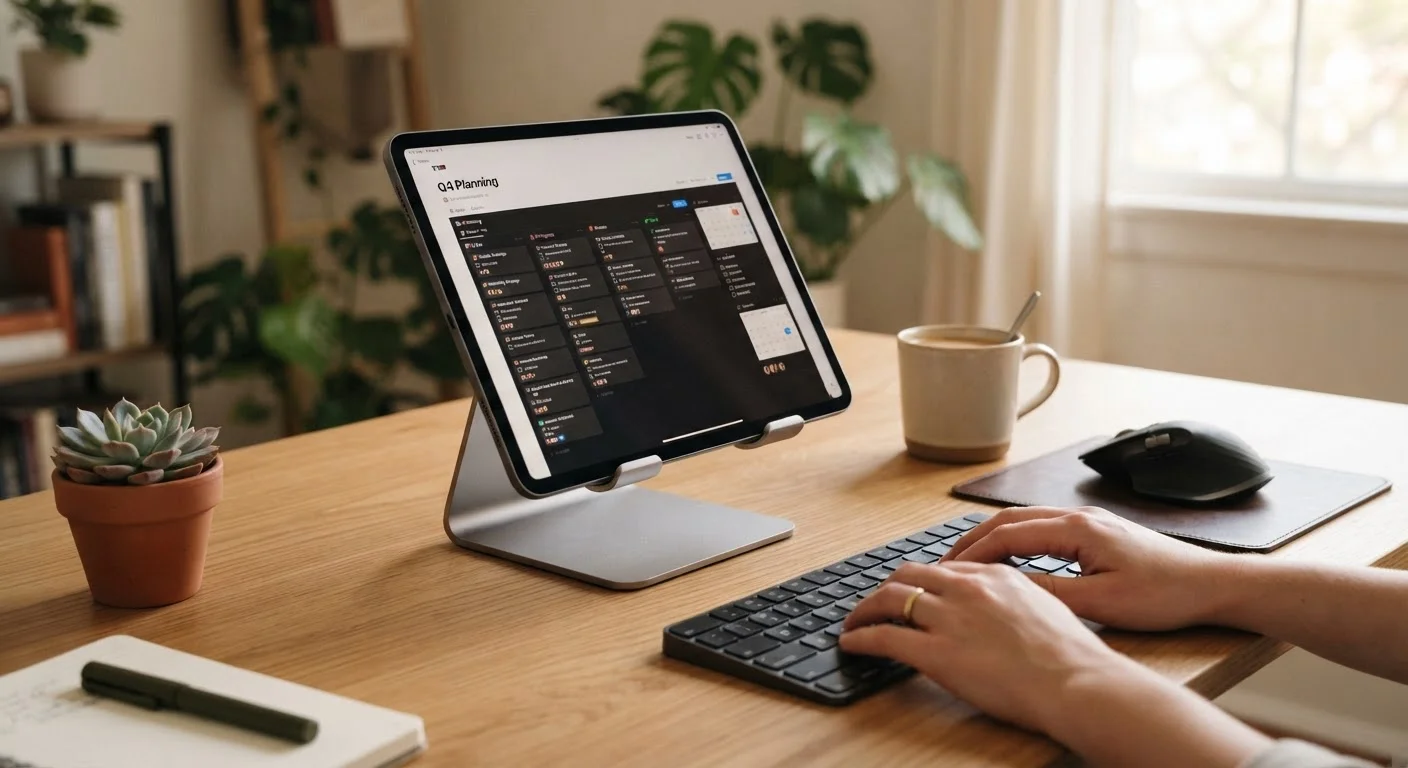
Pair a tablet with a Bluetooth keyboard — and optionally a stylus for handwritten notes or sketching — and the gap between it and a laptop narrows considerably. See our introduction to personal computing for context on how different device types fit different user needs.
Lightweight and easy to carry all day
Most tablets weigh significantly less than a laptop, making them genuinely easier to carry in a bag or hold in one hand for extended periods.
Long battery life reduces charger dependency
Many tablets comfortably last eight to twelve hours on a charge, which is longer than most laptops — practical for travel or long days away from outlets.
Touch interface suits media and communication tasks
Scrolling, reading, watching video, and video calling all feel natural on a touchscreen, and most popular apps are well-optimized for the format.
Keyboard accessories close the gap with laptops
A Bluetooth or attachable keyboard turns a tablet into a more capable writing tool, making emails, documents, and notes much less tedious to produce.
Versatile for note-taking and creative sketching
With a compatible stylus, tablets support handwritten notes, annotations, and freehand drawing in ways a laptop trackpad simply can't replicate.
Where Tablets Fall Short in Daily Use
The limitations tend to show up in two main areas: software and file management. Tablet operating systems — even the most capable ones — were built around apps rather than traditional desktop programs. If your work requires specific software that only runs on Windows or macOS, a tablet won't be a direct substitute.
Multitasking is another friction point. Running two apps side-by-side is possible on modern tablets, but it's less fluid than switching between a dozen open windows on a laptop. Copying content between apps, managing downloads, and organizing folders can feel cumbersome by comparison. If you regularly work with large spreadsheets, compile documents with complex formatting, or edit high-resolution photos and video, you'll likely encounter real constraints.
For a direct comparison of what separates tablets from laptops at the hardware level, this breakdown of laptop considerations covers what specs actually mean in practice. Understanding RAM, storage, and processing power also helps explain why some tasks feel sluggish on tablets that look capable on paper.
Limited access to desktop-class software
Many professional applications — certain design tools, engineering software, or specialized business programs — run only on Windows or macOS and have no comparable tablet version.
Multitasking feels restricted compared to a laptop
Split-screen modes on tablet operating systems support basic side-by-side use, but managing many tasks simultaneously remains more fluid on a traditional computer.
File management can be frustrating
Organizing, moving, and accessing files across apps and cloud services is less transparent on tablets, where the file system is often partially hidden from the user.
Typing posture is harder to sustain comfortably
Without a physical stand or folio case, typing on a flat tablet for extended sessions can lead to uncomfortable neck and wrist angles.
Peripheral support is often limited
Tablets typically have fewer ports than laptops, which can complicate connecting external monitors, drives, or other accessories without additional adapters.
Setting Up a Tablet to Work Harder
If you're committed to using a tablet as your primary device, setup choices matter a great deal. Cloud storage is essential — relying on local storage alone limits how easily you can access files across sessions and makes backup more complicated. Connecting a keyboard (and a mouse if the OS supports it) transforms the experience for any writing-heavy workflow.
Screen size is worth thinking through carefully. A smaller tablet is more portable but can make sustained productivity work feel cramped. Larger models balance usability better but lose some of the weight advantage. Consider how you'll prop the device up — stands and folio cases are common accessories that add stability for desk work.
Cloud Storage Is Practically Non-Optional
Tablets generally offer less local storage than laptops at a comparable price, and their file systems are less user-accessible. Relying on a cloud storage service — such as those offered by major platform ecosystems — fills this gap significantly. It also makes it easier to pick up work on another device if needed, which matters if the tablet ever needs repair or replacement.
Getting the setup right from the beginning makes a meaningful difference long-term. Keeping a new gadget running well from day one walks through the early steps that set the foundation for reliable performance. For a broader overview of how consumer gadgets work, the Gadgets Explained hub is a useful reference.
The content on this site is for informational purposes only and is not a substitute for professional advice. Always consult a qualified professional for guidance specific to your situation.