

Why It Helps to Understand the Boot Process
Most people interact with the power button dozens of times a week without thinking about what's happening on the other side of that press. But the boot sequence — the ordered series of events that takes a device from completely off to fully usable — is one of the most revealing windows into how computers actually work.
Understanding it has real practical value. When a device won't start, stalls on a blank screen, or takes forever to reach the home screen, knowing which stage of boot is failing points you toward the right fix. It also explains why certain upgrades (like adding RAM or switching to a faster storage drive) have such a dramatic effect on startup speed. For a broader look at how your device's components fit together, our end-to-end consumer gadgets field guide covers the full picture in plain language.
What you will need
The steps below trace the exact sequence of events, from the first millisecond of electricity to the moment your screen is ready to use.
The Six-Stage Boot Sequence, Explained
Electrical power reaches the main board
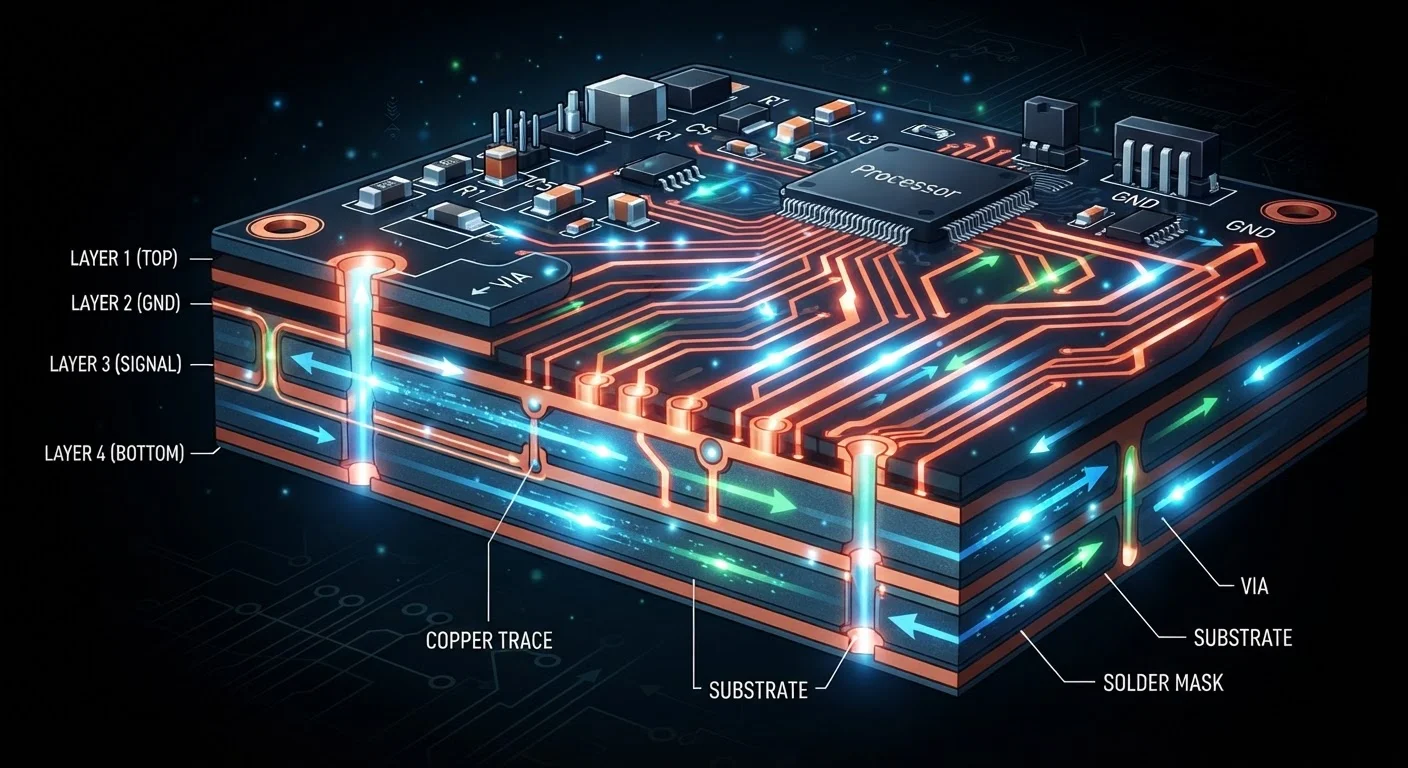
The moment you press the power button, you complete an electrical circuit. A small burst of power flows from the battery (or power supply) to the device's main circuit board — often called the motherboard. A dedicated chip called the PMIC regulates the voltage, making sure each component receives exactly the right amount of electricity. Too much or too little and the device simply won't start.
The processor wakes up and looks for instructions
With stable power flowing, the central processing unit (CPU) — the brain of the device — comes online. But the CPU can't operate without instructions. It immediately looks to a specific, fixed memory address where the firmware is stored. Firmware is low-level software permanently embedded in a chip on the board; it exists specifically to get the device started.
Firmware runs the power-on self-test (POST)
The firmware — known as BIOS (Basic Input/Output System) on older PCs or UEFI (Unified Extensible Firmware Interface) on modern ones — takes control. Its first job is the Power-On Self-Test (POST): a rapid inventory check of the device's core hardware. It confirms that RAM is present and functional, that storage drives are connected and readable, and that other essential components are responding. If something critical is missing or broken, the device stops here — sometimes with a beep code or error message.
The bootloader hands off to the operating system
Once POST passes, the firmware locates the bootloader — a small program stored at the very beginning of the device's main storage drive. The bootloader's entire job is to find the operating system (Windows, macOS, Android, iOS, etc.) and load it into RAM. RAM (Random Access Memory) is the device's short-term working memory — fast, temporary storage where active programs live while the device is on. For a deeper look at how RAM differs from storage, see our plain-English breakdown of RAM, storage, and processing power.
The operating system kernel loads
The operating system loads in layers. The first and most critical layer is the kernel — the core of the OS that manages communication between software and hardware. The kernel initialises device drivers (software translators that let the OS talk to the screen, keyboard, Wi-Fi chip, and so on), mounts the file system so the device can read its own storage, and establishes the basic environment everything else depends on.
User space loads — and you see the screen
With the kernel running, the OS loads the user space: the graphical interface, system services, and any apps or programs set to launch at startup. This is the stage most people think of as "booting" because it's the first thing they can see. The login screen (or home screen on a phone) appears once the user environment is ready. Background services — syncing, indexing, update checks — may continue loading for another minute or two after the screen appears, which is why devices can feel sluggish immediately after a restart.
Slow Boots Can Signal Deeper Issues
An unusually slow boot — particularly one that gets progressively worse over time — may indicate a failing storage drive, low available RAM, or too many programs set to launch at startup. If your device regularly takes several minutes to reach a usable state, it's worth investigating rather than ignoring.
Restart Regularly for a Cleaner Boot
Many people leave devices in sleep mode for days or weeks at a time. A full restart clears temporary files, applies pending updates, and lets the boot sequence run fresh — often noticeably improving responsiveness. Aim for a full restart at least once or twice a week.
Each of these six stages happens in strict order. A failure at any one of them prevents the next from starting — which is why diagnosing a startup problem often means figuring out how far into the sequence the device gets before it stops. Once you know your device boots reliably, check out what to do from day one to keep it running well.
What This Means for Everyday Use
The boot sequence isn't just an academic curiosity — it directly affects your experience. A device that restarts cleanly and quickly has healthy firmware, functional RAM, and a well-maintained storage drive. One that stalls, throws error messages, or takes five minutes to reach a usable state is telling you something specific about where the process is breaking down.
Don't Force-Shut Down Mid-Boot
Cutting power while a device is in the middle of booting — especially during storage or firmware operations — can corrupt system files and cause serious startup problems. If your device appears frozen during boot, wait at least two full minutes before considering a hard reset. Repeated forced shutdowns can shorten a device's lifespan.
If you're curious how all these components — the CPU, RAM, and storage that the boot sequence depends on — affect your device's day-to-day performance, our guide to smartphone specs in plain English decodes the numbers on the box. And if your device needs to go in for service, here's a practical checklist of steps to take before handing it to a technician.
The content on this site is for informational purposes only and is not a substitute for professional advice. Always consult a qualified professional for guidance specific to your situation.