

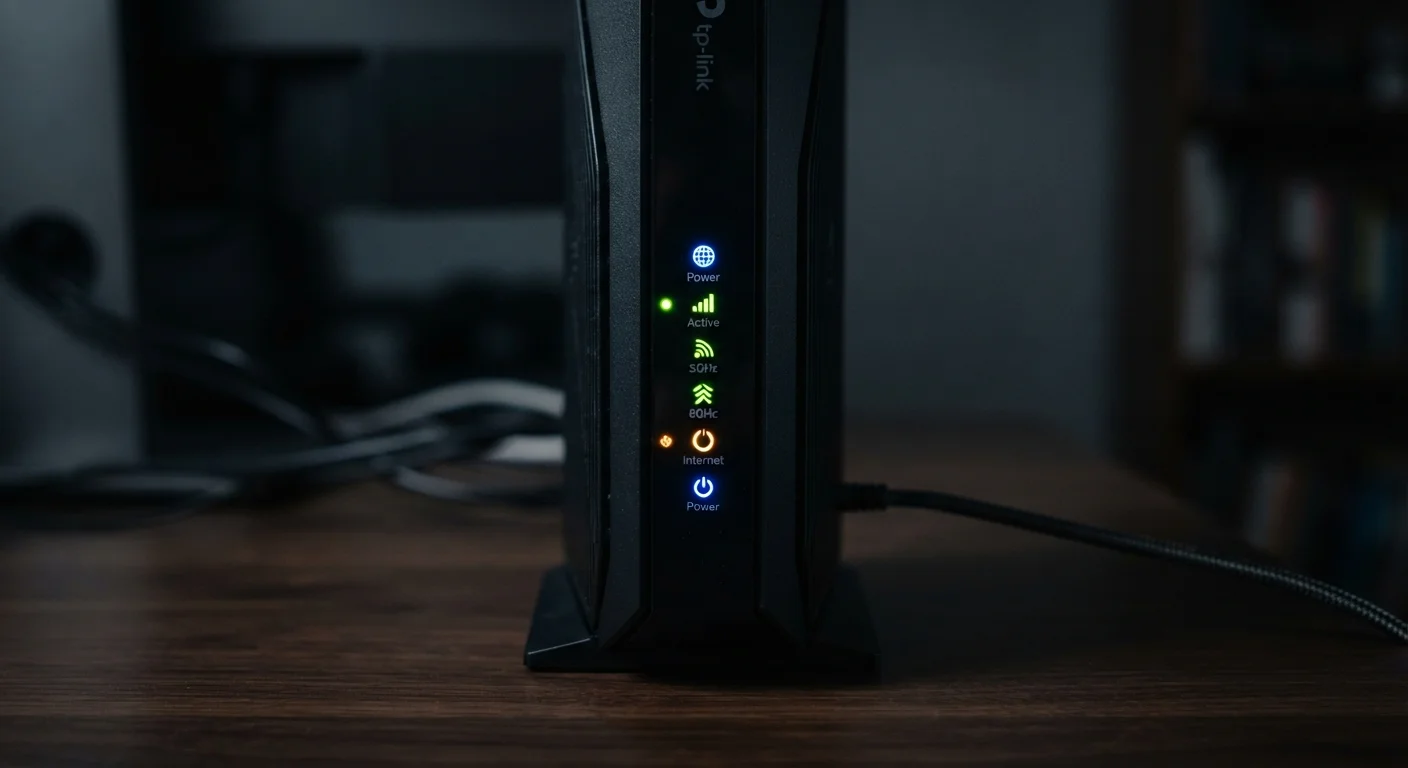
Why Router Lights Matter
Most people glance at their router's indicator lights only when something goes wrong — and even then, they're not quite sure what they're looking at. But those small LEDs are your router's way of communicating its status at a glance. Learning to read them means you can often diagnose a connection problem in seconds rather than spending 20 minutes on hold with your internet provider.
Keep in mind that light labels and colors vary by manufacturer and model. The patterns described here represent common conventions across widely used home routers, but your device's manual (usually available as a PDF from the manufacturer's website) will have the definitive key for your specific hardware.
If you're not sure whether your device is a router, a modem, or a combination unit, see our breakdown of routers vs. modems before diving in — the lights on each device mean different things.
| Solid green/white light | Normal operation |
| Blinking green/white light | Active data traffic (healthy) |
| Solid amber/orange light | Partial or degraded connection |
| Solid or blinking red light | Hardware fault or serious error |
| No light on WAN port | No physical cable connection detected |
| Blinking amber (all lights) | Firmware update or boot cycle in progress |
Common Lights and What They Signal
Here's what the most frequently labeled indicator lights typically mean:
Power Light
A solid light (usually white or green) means the router is on and running normally. No light means it isn't receiving power — check the power adapter and outlet. A flashing power light often indicates the router is booting up or applying a firmware update; this can take one to three minutes and is normal.
Internet or WAN Light
This light reflects your router's connection to your modem or the incoming internet signal. A solid green is what you want — it means an active internet connection is established. Solid amber or orange typically means the router is connected to the modem but cannot reach the internet (a signal to call your ISP or restart both devices). No light usually means there's no physical connection — check the cable running from your modem to the router's WAN port.
Wi-Fi Lights (2.4 GHz / 5 GHz)
Most modern routers have separate indicators for each wireless band. A solid light means that band is active and broadcasting. Blinking or flickering is completely normal — it means devices are actively sending and receiving data on that band. No light on a band means it's been turned off, either intentionally in settings or after a configuration change.
Ethernet / LAN Lights
Ports numbered 1 through 4 on the back of your router each have their own indicator. A solid light means a device is plugged in and connected. Blinking indicates active data transfer on that port. No light means nothing is physically connected to that port, or the cable or device has an issue.
WPS Light
WPS (Wi-Fi Protected Setup) lets you connect a device by pressing a button rather than entering a password. Its light blinks briefly when a WPS pairing session is in progress and returns to solid or off when the session ends. If it blinks continuously for several minutes, the pairing attempt failed.
WAN Port
The WAN (Wide Area Network) port is the single input port on your router where the cable from your modem connects. It's how your router receives the internet signal from your ISP.
LAN Port
LAN (Local Area Network) ports are the numbered Ethernet jacks on your router where you can plug in devices like computers or smart TVs for a wired connection.
2.4 GHz / 5 GHz Bands
Most modern routers broadcast two separate wireless frequencies. The 2.4 GHz band has longer range but slower speeds; the 5 GHz band is faster over shorter distances.
WPS
Wi-Fi Protected Setup is a feature that lets compatible devices join your network by pressing a physical button on the router, bypassing the need to enter a password manually.
Firmware
Firmware is the built-in software that controls your router's core functions. Manufacturers release firmware updates to fix bugs, patch security vulnerabilities, and add features.
What Different Colors Mean Across Routers
Router manufacturers don't follow a universal color standard, but a few conventions are common enough to be useful:
- Solid green or white: Normal operation — everything is working as expected.
- Blinking green or white: Active data traffic — this is healthy behavior, not a problem.
- Solid amber or orange: Partial connection or a degraded state — the device is on but something is wrong with the link.
- Blinking amber: Often indicates a firmware update in progress or a boot cycle. Do not unplug the router while this is happening.
- Solid or blinking red: A more serious fault — hardware failure, overheating, or an unrecoverable error. If a restart doesn't resolve it, contact your ISP or the manufacturer.
- No light: Power is off, or that specific feature or port is inactive.
For a broader look at how your network actually works — including what happens when a device connects and why some rooms get weaker signals — see our plain-language guide to home Wi-Fi.
When in Doubt, Check the Manual
Router light behavior is not standardized across the industry — the same amber blinking pattern can mean different things on different devices. The most reliable source is the documentation that came with your specific model. If you no longer have it, search the manufacturer's website using your model number, usually printed on a label on the bottom of the router.
Quick Troubleshooting by Light Pattern
If your internet isn't working, the lights give you a starting point:
- Power light is off: Check the power cable and outlet before anything else.
- Internet/WAN light is amber or off: Restart your modem first, wait 60 seconds, then restart the router. If the problem persists, your ISP may have an outage.
- Wi-Fi light is off: Log into your router's admin panel to check whether the band was accidentally disabled.
- All lights normal but no internet: The issue may be on your ISP's side, or a single device may have a software or IP conflict — try disconnecting and reconnecting that device.
- Red light or rapid flashing across all lights: A full power cycle (unplug for 30 seconds, then plug back in) is the first step. If it recurs, check for a firmware update or contact support.
If you have a mesh network rather than a traditional router, individual node lights work similarly, but the system's app usually provides clearer diagnostics. See how mesh networks differ from traditional routers for more context on what to expect.
~60 sec
Typical router restart time to restore connection
Most consumer routers fully reboot and re-establish a connection within about 60 seconds of being power-cycled.
2
Wireless bands on most modern dual-band routers
Standard home routers typically broadcast on both 2.4 GHz and 5 GHz frequencies, each with its own indicator light.
The content on this site is for informational purposes only and is not a substitute for professional advice. Always consult a qualified professional for guidance specific to your situation.