

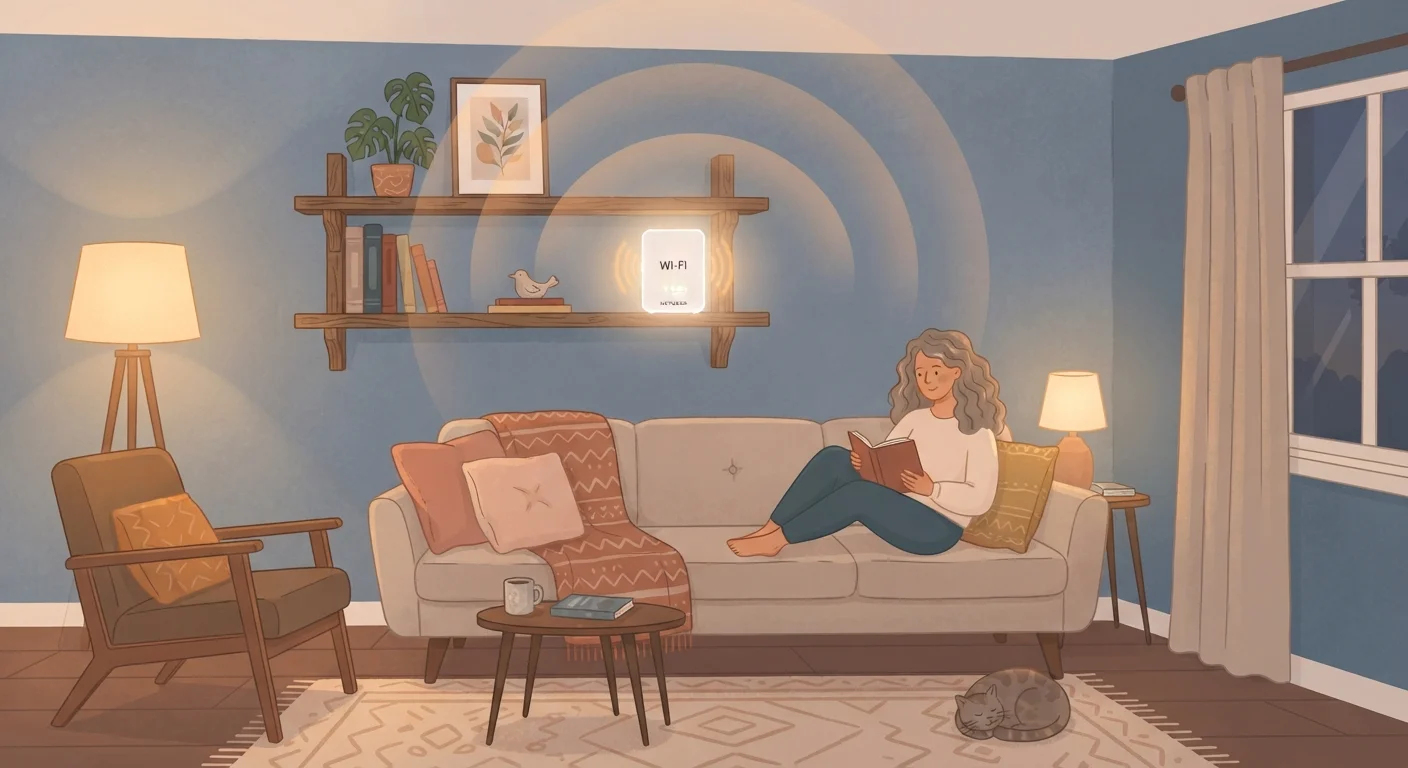
How Your Router Creates a Wireless Network
Everything starts with your router. When your internet service provider delivers a connection to your home — through a cable, fiber optic line, or DSL — your modem receives that signal. The router's job is to take that connection and broadcast it wirelessly as radio waves throughout your home.
Think of the router like a radio station. It transmits signals on specific frequencies, and your devices — phones, laptops, smart TVs — act as receivers tuned to those frequencies. When you stream a video or load a webpage, data travels from the internet, through your modem, into your router, and then over the air to your device. That round trip happens thousands of times per second.
For a broader look at how home technology pieces fit together, visit our Gadgets Explained hub, which covers plain-language breakdowns of popular consumer devices.
17+
Average connected devices per U.S. household
According to Deloitte's Digital Media Trends survey, the average American household has more than 17 internet-connected devices.
2.4 GHz
Most common band for smart home devices
The majority of smart home gadgets — from bulbs to thermostats — connect on the 2.4 GHz band due to its longer range and broader device compatibility.
~30 ft
Typical 5 GHz range through walls
The 5 GHz band's effective indoor range drops substantially through walls and floors, generally staying reliable within roughly 30 feet of the router in typical home construction.
The Two Bands: 2.4 GHz and 5 GHz
Modern home routers broadcast on two different frequency bands, and understanding them helps explain a lot of everyday Wi-Fi behavior.
- 2.4 GHz: This band travels farther and penetrates walls more easily, but it carries less data and is shared by many other household devices — including microwaves and baby monitors — which can cause interference.
- 5 GHz: This band is significantly faster and less congested, but its signal weakens more quickly over distance and doesn't pass through walls as well.
Newer routers often handle band selection automatically, steering devices to whichever band makes more sense based on their location and needs. Some routers also support a third band — 6 GHz — introduced with the Wi-Fi 6E standard, which offers even more speed and less congestion for compatible devices.
Curious how Wi-Fi compares to other wireless technologies? See Bluetooth vs. Wi-Fi: Two Wireless Technologies, Very Different Jobs.
Optimize Your Band Selection
If your router broadcasts separate network names for 2.4 GHz and 5 GHz, connect laptops and streaming devices to 5 GHz when you're in the same room as the router for faster speeds. Reserve 2.4 GHz for smart home devices and gadgets located farther away. Many newer routers handle this automatically with a single unified network name.
Why Signals Weaken — and What Creates Dead Zones
Radio waves don't travel indefinitely. As they move through the air — and especially through solid objects — they lose strength. This is why the same router that delivers a blazing-fast connection in the living room might barely reach the upstairs bedroom.
Common signal blockers include:
- Thick walls — especially concrete, brick, or plaster
- Metal surfaces — appliances, HVAC ducts, filing cabinets
- Multiple floors — signals weaken substantially traveling vertically
- Distance — every additional foot reduces signal strength
Areas where the signal drops below usable strength are called dead zones. Router placement plays a huge role: a router tucked in a corner cabinet in one end of the house will always struggle to reach the far end. Centering the router in your home and keeping it elevated tends to improve overall coverage.
If dead zones are persistent, a mesh Wi-Fi system may help. Our article Mesh Wi-Fi vs. Traditional Routers: What's Actually Different explains how these systems distribute coverage differently from a single router.
Router Placement Matters More Than Most People Realize
Routers are often installed wherever the cable enters the home — typically a closet, corner, or basement — which is rarely the ideal location for coverage. Placing the router in a central, elevated, open location (like a shelf in a main living area) can meaningfully improve signal reach across the home. Avoid placing it inside cabinets or behind large electronics.
Bandwidth, Speed, and Sharing the Network
Your internet plan comes with a specific bandwidth — essentially a speed limit on how much data can flow in and out of your home at once. That bandwidth is shared among every device actively using the network.
If four people are in the house simultaneously streaming video, playing online games, and joining video calls, they're all drawing from the same pool. This is why speeds can feel slower during peak household hours even when nothing has technically changed about your plan or equipment.
The number of devices on a typical home network has grown dramatically. Smart speakers, security cameras, thermostats, and even refrigerators now compete for bandwidth alongside phones and computers. Everything That Lives on Your Home Network (and Why It Matters) for a closer look at the full picture.
“The average home network has become as complex as a small office network was just a decade ago. Managing that well — placement, bands, device load — makes a real difference in daily experience.”
— Wi-Fi Alliance, Industry organization advancing Wi-Fi technology standards
For plain definitions of terms like bandwidth, latency, and SSID, the Connected Home Glossary is a useful reference.
Frequently Asked Questions
Your modem connects your home to your internet service provider (ISP), translating the signal coming in from outside. Your router then takes that connection and distributes it wirelessly (and via ethernet) to your devices. Many ISPs provide a single combined unit that does both jobs.
Distance from the router, thick walls, floors, and interference from other electronics all reduce signal strength. The farther a device is from the router, and the more obstacles in between, the weaker and slower the connection becomes.
These are two different radio frequencies your router can use. The 2.4 GHz band travels farther but carries less data. The 5 GHz band is faster but has a shorter range. Most modern routers broadcast both simultaneously.
Most home routers can handle 20–50 connected devices, though performance may degrade as more devices actively use the network at once. Bandwidth is shared among all active connections.
Both matter. Your internet plan sets the maximum speed coming into your home. Your router then determines how efficiently that speed is distributed wirelessly. A slow plan can't be fixed by a better router, and a slow router can bottleneck a fast plan.
Dead zones occur where the router's signal is too weak to reach reliably — usually far corners of a home, rooms separated by thick concrete or brick walls, or areas shielded by large appliances. Router placement, building materials, and home layout all contribute.
The content on this site is for informational purposes only and is not a substitute for professional advice. Always consult a qualified professional for guidance specific to your situation.