

What "Home Network" Actually Means
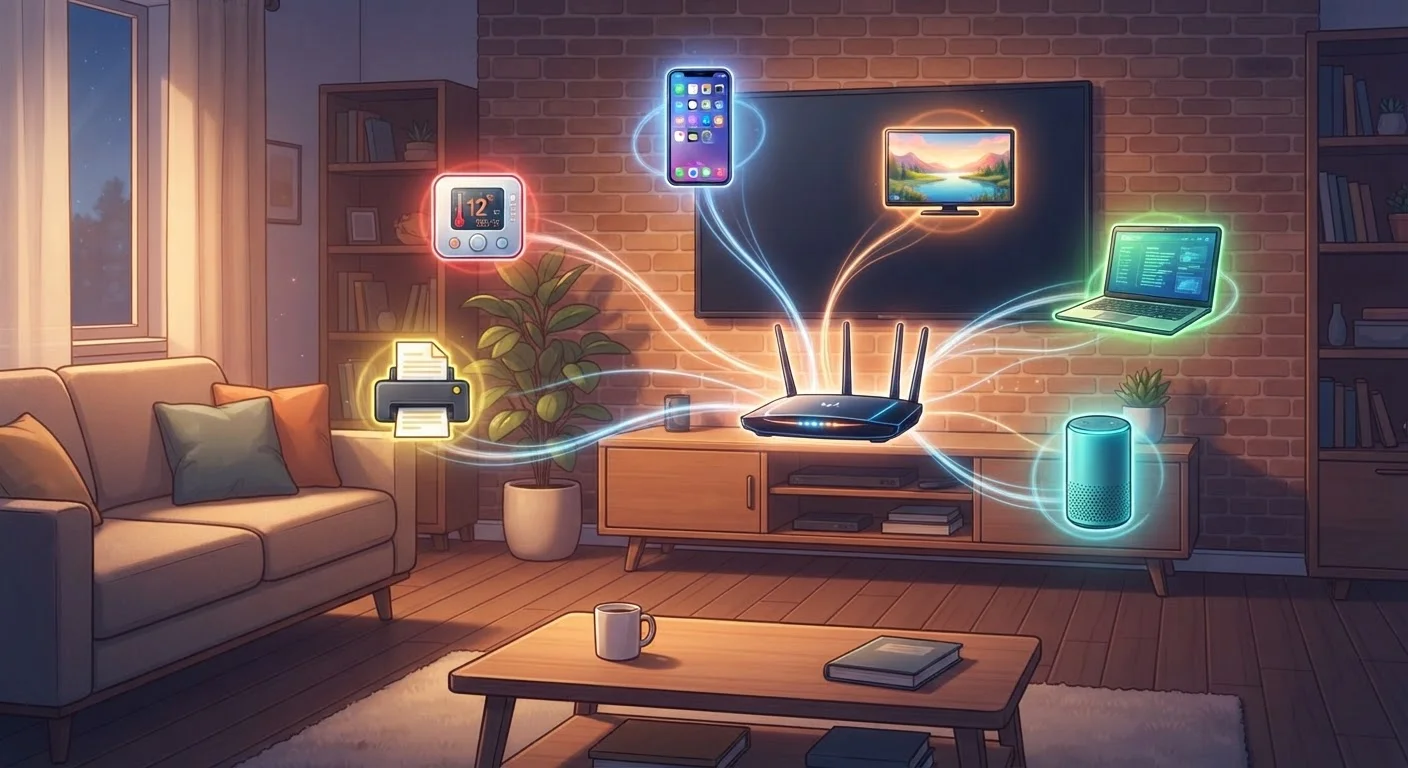
Your home network is the infrastructure that lets devices in your house share an internet connection and, in many cases, talk to one another. At its core, it consists of a modem (which brings internet service into your home from your provider) and a router (which distributes that connection to your devices, either over Wi-Fi or through wired Ethernet cables).
Everything that connects to that router — whether wirelessly or by cable — becomes part of your network. The router assigns each device a unique local address called an IP address, which it uses to route data to and from the right place. Think of it as a postal sorting office: every device gets its own mailbox number, and the router makes sure packets of data reach the right one.
For a deeper look at how the underlying technology works, see our plain-language explainer on home Wi-Fi.
The Devices You Expect — and Plenty You Might Forget
Smartphones and laptops are obvious network occupants, but they account for only a fraction of what most households actually connect. Here's a more complete picture:
- Entertainment: Smart TVs, streaming sticks, game consoles, Blu-ray players. See how these differ in our breakdown of smart TVs, streaming sticks, and set-top boxes.
- Smart home: Thermostats, door locks, video doorbells, security cameras, smart plugs, light bulbs, and leak sensors. Our guide to smart thermostats covers one common example in depth.
- Voice and display devices: Smart speakers and smart displays — explained in our overview of smart speakers, displays, and hubs.
- Peripherals: Network-connected printers, scanners, and NAS (Network Attached Storage) drives.
- Wearables and health devices: Smartwatches that sync over Wi-Fi, connected scales, and blood pressure monitors.
- Children's devices: Tablets, handheld game systems, and connected toys.
A household of four people can easily surpass 20 connected devices once you count every smart bulb, tablet, and game controller.
17
Average connected devices per US household
According to Deloitte's Digital Media Trends survey, US households averaged around 17 connected devices in recent years, a figure that continues to climb.
4K stream
Bandwidth consumed by a single 4K video stream
Streaming services generally recommend 15–25 Mbps per 4K stream, meaning a household watching multiple streams simultaneously can exhaust even a fast connection.
How Devices Interact on the Same Network
One thing many people don't realize: devices on your home network don't just reach outward to the internet — they can also communicate with each other locally. This local communication is how features like casting a video from your phone to your TV, printing wirelessly, or having a smart hub control your lights all work.
This traffic stays inside your router and never touches the internet, which is why local streaming or printing can work even during a brief internet outage. The technical term for this is local area network (LAN) traffic, as opposed to wide area network (WAN) traffic that travels to external servers.
Some smart home devices use Wi-Fi for this, while others rely on shorter-range protocols like Bluetooth, Zigbee, or Z-Wave, which require a separate hub to bridge them onto your main network. Our Connected Home Glossary explains these terms in plain language.
When a smart home device behaves erratically, check whether it's struggling to maintain a Wi-Fi connection — many IoT devices perform better on the 2.4 GHz band, which offers greater range even if it's slower.
The 2.4 GHz band penetrates walls more effectively than 5 GHz, making it more reliable for low-bandwidth devices like thermostats and sensors that are spread throughout the home.
Give your devices descriptive names in your router's admin interface — something like "Living Room TV" instead of the default hardware code — so you can actually recognize what you're looking at during a security review.
Default device names are often manufacturer codes that mean nothing to a non-technical user. Readable names make it immediately obvious when something unfamiliar appears on the list.
What All Those Connections Mean for Speed
Your internet connection has a fixed capacity — measured in megabits per second (Mbps) — that all devices share simultaneously. Adding more active devices doesn't reduce the raw speed of your connection, but it does divide available bandwidth among more competing demands.
The bigger culprits are devices that stream high-resolution video, perform large backups, or download software updates in the background. A 4K video stream, for instance, can consume 15–25 Mbps on its own. Run three of those at once alongside a video call and a backup job, and even a robust connection can feel strained.
For a closer look at which household devices tend to consume the most bandwidth, see our article on devices that tend to slow down a home network.
Background Updates Happen at the Worst Times
Many devices — gaming consoles, smart TVs, phones — download large software updates automatically, often overnight or during peak household hours. These updates can consume significant bandwidth without any visible indication. Check each device's update settings to schedule downloads during off-peak times when possible.
Taking Stock: How to See What's Actually Connected
The most reliable way to inventory your network is through your router's admin interface. You can usually reach it by typing an address like 192.168.1.1 or 192.168.0.1 into a browser (check the label on your router for the exact address). Once logged in, look for a section labeled "Connected Devices," "DHCP Clients," or "Device List."
You'll see each device's name (sometimes cryptic), its local IP address, and whether it's on the 2.4 GHz or 5 GHz band. Many modern routers also offer a companion app that presents this information more visually and may flag unusual devices.
Some third-party apps can scan your local network and identify devices by their hardware signatures. These can be useful when router-assigned names aren't descriptive enough to tell a smart plug from a thermostat.
Do a Device Audit Every Few Months
Set a reminder to review your router's connected device list two or three times a year. Devices you've forgotten about — an old guest's phone that auto-connects, a decommissioned tablet — can linger indefinitely. Removing them keeps your network list accurate and reduces unnecessary traffic.
Why This Visibility Matters Beyond Speed
Understanding what lives on your network isn't only a performance exercise — it's also a meaningful first step toward security. An unfamiliar device on your network could indicate an unauthorized connection. Older, unpatched devices can become vulnerabilities that expose everything else on the same network.
Regularly reviewing your connected devices also helps you identify what you've forgotten about: an old tablet in a drawer, a baby monitor from a previous home, or a printer that belongs to a former roommate. Disconnecting unused devices reduces both network clutter and attack surface.
Our article on home network security habits covers the practical steps — from firmware updates to guest networks — that meaningfully reduce your exposure. And for a broader foundation in home tech concepts, the Gadgets Explained hub is a useful starting point.
The content on this site is for informational purposes only and is not a substitute for professional advice. Always consult a qualified professional for guidance specific to your situation.