

Why Wi-Fi Myths Are So Sticky
Home Wi-Fi is one of those technologies most of us rely on constantly but rarely think about critically. That gap between daily use and actual understanding is exactly where myths take root. A signal drops, someone offers a quick explanation — "your microwave is interfering" or "too many devices slow everything down" — and that explanation sticks, even when it's only partially true or flat-out wrong.
The result is that many households make decisions about their routers, network settings, and device placement based on folklore rather than how wireless networking actually works. For a plain-language look at what's happening under the hood, see our guide to how home Wi-Fi actually works. This article tackles the most persistent myths head-on.
Myth
More bars on my device means I'm getting faster internet.
Fact
Signal bars measure your device's connection strength to the router, not your internet speed.
The bars — or the arc icon on many phones — reflect how strong the radio signal is between your device and the router. A strong signal means your device and router are communicating reliably, but your actual internet speed is still capped by your service plan and the router's connection to your modem. You can sit directly beside your router, see full bars, and still have slow internet if your ISP plan is modest or your modem connection is congested.
Myth
Turning off your router overnight damages it or disrupts performance.
Fact
Consumer routers are designed to be powered on and off without harm, and a restart can sometimes improve performance.
Routers are not like servers that need continuous uptime to maintain complex states. Powering yours down overnight is harmless to the hardware. In fact, a periodic restart clears temporary memory (RAM), forces the router to reassign channels, and can resolve minor software glitches that accumulate over days of operation. If you notice your connection feeling sluggish after several weeks without a restart, that's often the cause.
Myth
Hiding your Wi-Fi network name (SSID) keeps it secure from hackers.
Fact
A hidden SSID provides minimal security and does not meaningfully deter determined attackers.
When you hide your network name, your router stops broadcasting it — but it still responds to devices that know to look for it, and those probe requests are visible to anyone using freely available network-scanning tools. A strong, unique password using WPA3 or WPA2 encryption is what actually protects your network. Hiding the SSID adds inconvenience for your own devices without significantly raising the bar for anyone trying to access your network without permission.
Myth
The more devices connected to your Wi-Fi, the slower it gets for everyone.
Fact
Device count alone rarely causes slowdowns — it's what those devices are doing that matters.
A network with 30 idle smart home sensors uses almost no bandwidth. A network with 5 devices, one of which is streaming 4K video and another running a large backup, can feel congested. Each device does occupy a small amount of router processing capacity just by being connected, but for modern routers that overhead is negligible until you're dealing with dozens of actively transmitting devices simultaneously. Understanding what's on your network is more useful than counting devices.
Myth
Putting your router in a corner of the house gives you better signal coverage.
Fact
A central, elevated location is almost always the best placement for a router.
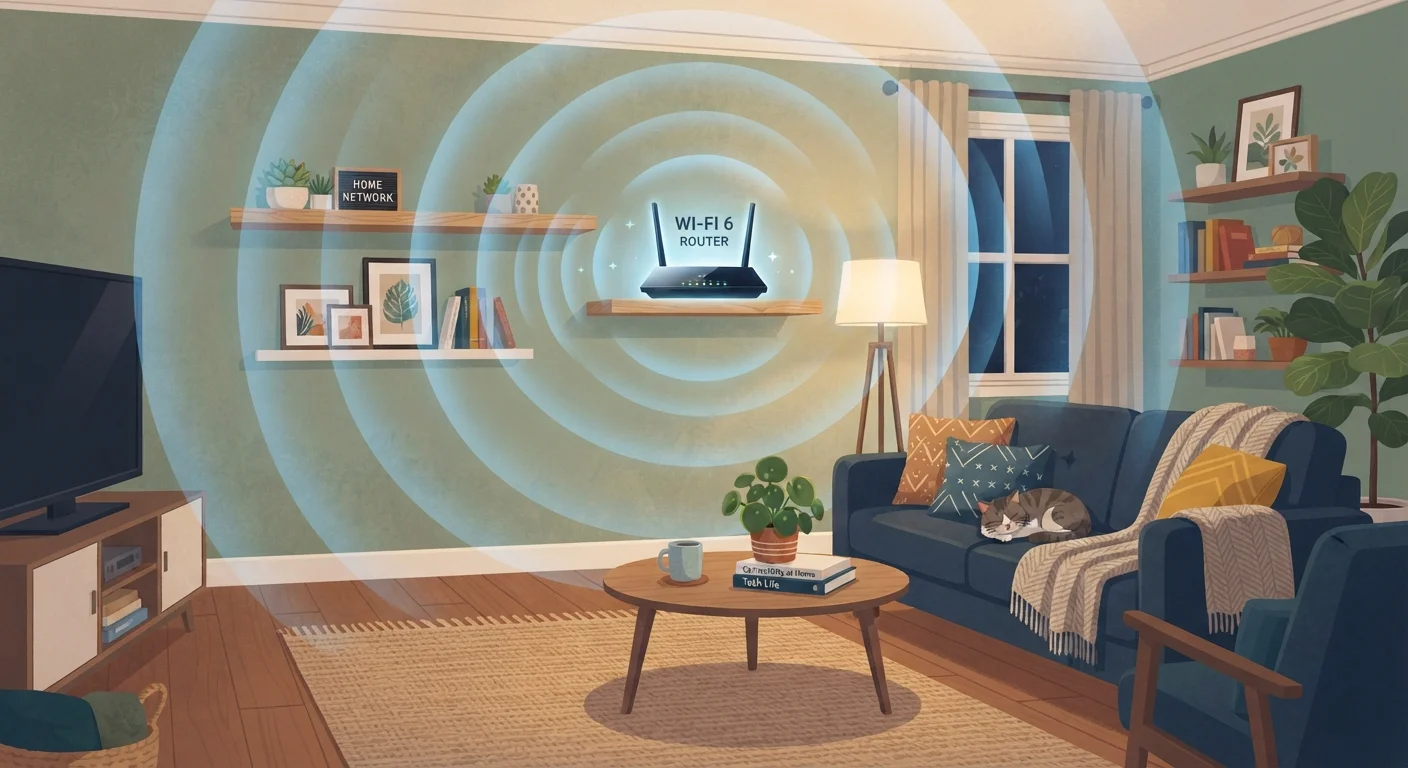
Wi-Fi signals radiate outward in all directions from the antenna, roughly like an expanding sphere. Placing your router in a corner means a large portion of that signal is broadcast into walls, neighboring units, or outside — wasted coverage that does nothing for your home. A central location, ideally elevated off the floor and away from large metal objects or thick concrete walls, distributes that signal more evenly. If your modem is locked to a corner by your ISP's coaxial or phone-line hookup, a longer Ethernet cable to a centrally placed router is worth considering.
Myth
Your neighbor's Wi-Fi network has no effect on your connection.
Fact
Overlapping Wi-Fi channels from neighboring networks can measurably slow your speeds.
Wi-Fi operates on radio frequency channels, and when multiple networks share the same channel in close proximity, they compete for airtime — a phenomenon called channel interference. This is especially common on the 2.4 GHz band, which has only three non-overlapping channels (1, 6, and 11). Most modern routers select channels automatically, but in dense apartment buildings that auto-selection may still land on a congested channel. Checking your router's admin interface and manually selecting a less crowded channel can make a noticeable difference.
What Actually Affects Your Wi-Fi Performance
Once the myths are cleared away, a clearer picture emerges: your Wi-Fi speed is shaped by a handful of real factors — your internet service plan's capacity, your router's age and standard (Wi-Fi 5, Wi-Fi 6, etc.), physical obstructions between your device and router, and competing traffic on the wireless channel your router uses.
2.4 GHz vs. 5 GHz
The two most common Wi-Fi frequency bands
The 2.4 GHz band travels farther but is more prone to interference; the 5 GHz band offers faster speeds at shorter range — understanding both helps with device placement.
~30 ft
Typical range loss through interior walls
Each interior wall a Wi-Fi signal passes through can reduce effective range by roughly 30 feet, depending on wall construction material.
Device count matters less than device behavior. A smart thermostat barely uses bandwidth; a 4K video stream or an active video game console uses a great deal. Certain devices consume far more bandwidth than others, and knowing which ones helps you prioritize. For devices where reliability matters most — a desktop computer, a smart TV, a game console — a wired Ethernet connection often makes more practical sense than Wi-Fi. Our wired vs. wireless guide explains when each choice pays off.
Don't Overlook Router Firmware Updates
An outdated router firmware can leave your network exposed to known security vulnerabilities — and may also cause unexplained slowdowns. Most modern routers can apply updates automatically through their admin app or settings page. Check every few months if automatic updates aren't enabled. Your router's indicator lights can sometimes signal when something needs attention.
If you're dealing with persistent dead zones rather than general slowness, the fix is usually router placement or a coverage upgrade — not your internet plan. Mesh Wi-Fi systems and traditional routers handle coverage in meaningfully different ways, and understanding that difference can save you from an unnecessary plan upgrade.
The content on this site is for informational purposes only and is not a substitute for professional advice. Always consult a qualified professional for guidance specific to your situation.