

Our Verdict
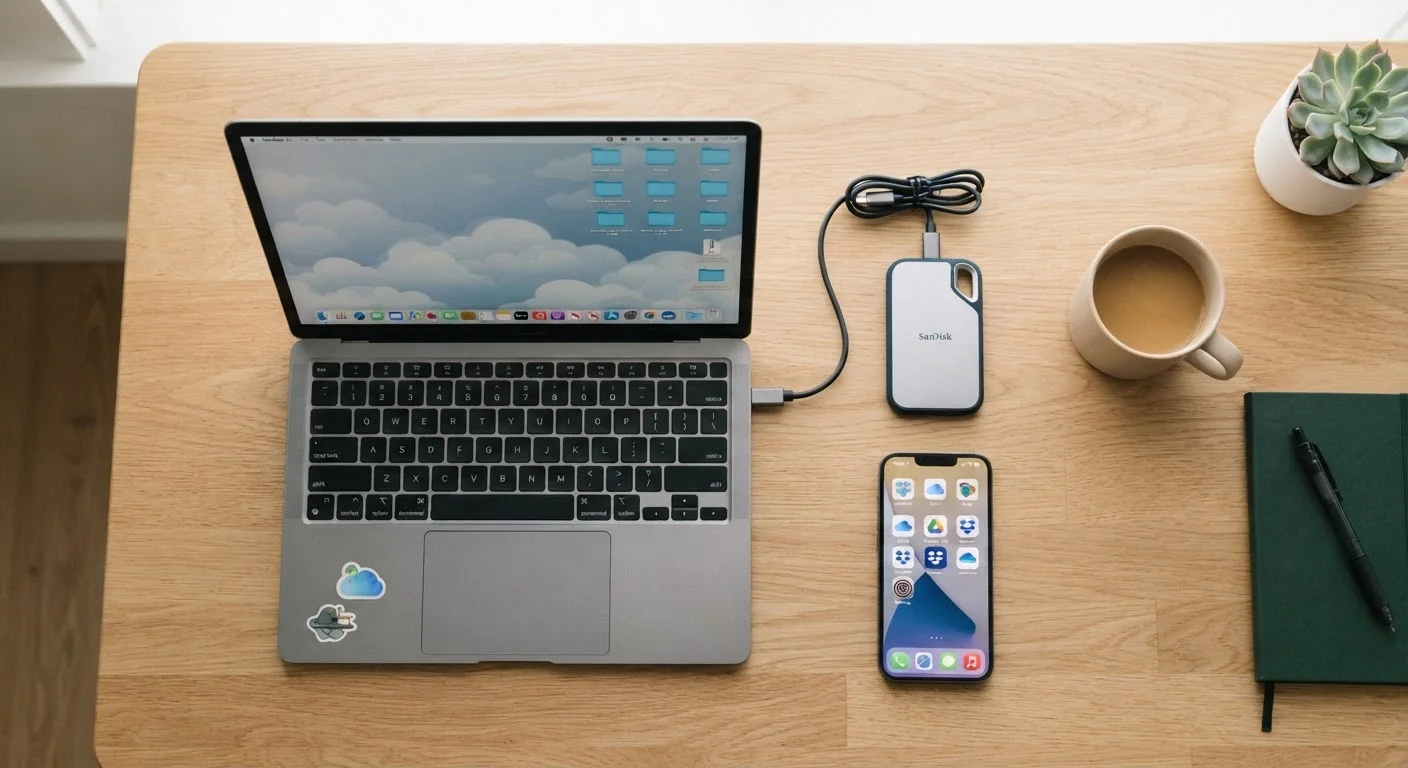
No single storage type wins for everyone. Cloud storage suits people who work across multiple devices or need easy sharing. Local storage is ideal when speed and privacy matter most. External drives are the go-to for large backups and archiving data at a low ongoing cost.
| Best for | Recommended |
|---|---|
| Accessing files across multiple devices or locations | Cloud Storage |
| Fast, private, always-available file access on one machine | Local Storage |
| Large backups or archiving without recurring fees | External Drive |
| Maximum protection for irreplaceable files | A combination of all three |
What Each Storage Type Actually Means
Before comparing trade-offs, it helps to understand what each option does under the hood.
Local storage is the built-in memory inside your device — the hard drive or SSD (solid-state drive) in your laptop, or the internal storage in your phone. Files live directly on the machine. For a deeper look at how storage differs from RAM and processing power, see how RAM, storage, and CPU power differ.
Cloud storage means your files are uploaded to and stored on remote servers run by a third-party provider. You access them through a browser or app, and your data syncs across every device you sign into.
External drives are physical devices — USB flash drives, portable hard drives, or desktop external drives — that plug into your computer and store data separately from your machine's internal storage.
| Cloud Storage | Local Storage | External Drive | |
|---|---|---|---|
| Cost structure | Monthly/annual subscription | One-time (device purchase) | One-time hardware purchase |
| Internet required | Yes, to access files | No | No |
| Access from multiple devices | Yes, seamlessly | No — single device only | Only when physically connected |
| Typical capacity | 5 GB free; TBs with paid plan | 256 GB – 2 TB typical | 500 GB – 8 TB common |
| Main failure risk | Account breach, provider issues | Device failure or theft | Physical damage or loss |
| Privacy level | Shared with provider | Fully private | Fully private |
| Best use case | Syncing and sharing files | Fast daily access | Backups and archiving |
Cost, Access, and Reliability Compared
Each storage type carries a distinct cost structure and a different set of reliability risks.
Cost
Local storage has no ongoing cost once you buy your device. External drives are a one-time purchase; a 1 TB portable drive typically costs $50–$80. Cloud storage usually runs on a monthly or annual subscription, with free tiers generally limited to 5–15 GB — enough for documents, but not large photo or video libraries.
Access
Local storage is always available, even without internet. Cloud storage shines when you're switching between devices or sharing files with others — but it's limited by your connection quality. If you rely heavily on cloud files over cellular data, it's worth reading about when Wi-Fi vs. mobile data makes sense to avoid unexpected slowdowns or data charges.
Reliability and Risk
Local storage fails with the device — a spilled drink or hard drive crash can wipe everything. External drives can be dropped, lost, or stolen. Cloud storage is resilient to physical disasters but depends on the provider staying in business and your account staying secure. Keeping your accounts secure matters especially when accessing cloud files from public computers.
Start With What You Already Have
Before buying anything new, check how much local storage your device actually has available and whether your phone or computer already includes a cloud storage allocation. Many devices come with a free cloud tier (such as iCloud or Google One) that's already active. You may have more coverage than you realize before spending a dollar.
Privacy and Security Considerations
Privacy works very differently across the three options. Local storage keeps your files entirely under your control — no company can access them remotely. External drives are similarly private as long as you keep physical possession of the device.
Cloud storage, by contrast, involves uploading your data to a third party's servers. Reputable providers use encryption both in transit and at rest, but your files are theoretically accessible to the provider, and accounts can be compromised if passwords are weak or reused. Enabling two-factor authentication on any cloud account is a straightforward step that significantly reduces this risk.
For sensitive files — tax documents, medical records, legal paperwork — many people prefer to keep primary copies on local or external storage rather than in the cloud.
68%
U.S. adults using cloud storage
According to Pew Research Center survey data, roughly two-thirds of American adults store data in the cloud in some form.
1 in 3
People who have experienced data loss
Industry surveys consistently find that about one-third of users have lost data due to hardware failure, accidental deletion, or device theft at some point.
Which Approach Makes Sense for You
Most people don't need to pick just one option. A practical approach many households use is sometimes called the 3-2-1 rule: keep three copies of important files, on two different types of storage, with one copy stored off-site (such as in the cloud).
For everyday use, local storage handles the speed and convenience of active files. An external drive makes sense for periodic backups and storing large media archives. Cloud storage fills in the gaps — syncing documents you need on multiple devices and providing a remote safety net if something happens to your hardware.
Thinking about how you manage your files is similar to how you might think about organizing your finances — just as a spending tracker, spreadsheet, or budgeting app each serves a different need, no single storage option covers every scenario perfectly. Matching the tool to the task is what matters.
Don't Rely on a Single Storage Location
Storing irreplaceable files — family photos, financial records, important documents — in only one place is a genuine risk. Hard drives fail, phones get stolen, and cloud accounts can be locked or compromised. Even a simple routine of copying important folders to an external drive once a month can prevent a permanent and painful loss.
The content on this site is for informational purposes only and is not a substitute for professional advice. Always consult a qualified professional for guidance specific to your situation.